


How can I quickly populate the Path to search?
Note Windows Vista, Windows 7, Windows 10 and Windows 11 users: to set Simple Search-Replace to be in the right-click menu, you must first run the program as the Administrator. This is done by right-clicking Simple Search-Replace and choosing "Run as Administrator". After running Simple Search-Replace as the administrator you can go into the Options (F10) and check the option to "Add option to right-click of Windows Folders" and click Save. From this point forward you can run Simple Search-Replace by double-clicking on it or using the right-click menu on a folder in Windows Explorer.
The quickest way to populate the Path to search textbox is to integrate it with the Windows Explorer right-click menu. We have made the process of adding Simple Search-Replace very easy. As the screenshots below indicate, click on the Options menu and click Settings (F10). You will see this screen:
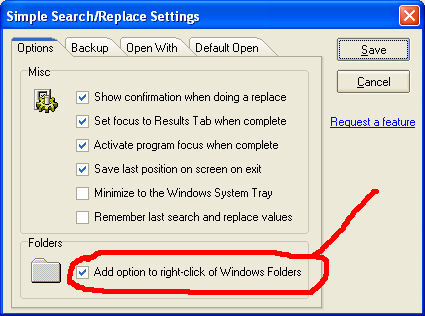
If you check this option and then click Save. Your computer will be automatically updated to include Simple Search-Replace on the right-click menu of any Folder within Windows. This includes the Windows Explorer. Below is an example of the option on the right-click menu of a folder:
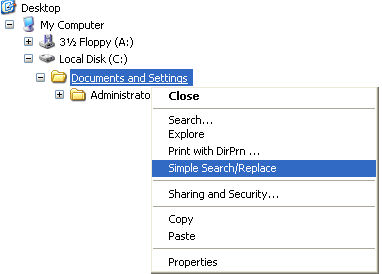
Note: If you move the location of Simple Search-Replace after adding the Explorer integration, you will have to check this option in the settings again.
The quickest way to populate the Path to search textbox is to integrate it with the Windows Explorer right-click menu. We have made the process of adding Simple Search-Replace very easy. As the screenshots below indicate, click on the Options menu and click Settings (F10). You will see this screen:
If you check this option and then click Save. Your computer will be automatically updated to include Simple Search-Replace on the right-click menu of any Folder within Windows. This includes the Windows Explorer. Below is an example of the option on the right-click menu of a folder:
Note: If you move the location of Simple Search-Replace after adding the Explorer integration, you will have to check this option in the settings again.
Support Our Work
Please consider making a contribution today to help us keep Simple Search-Replace available for everyone.

Didn't find your answer?
Our support team can help you with your specific issue. Submit a request and we'll get back to you.
Get Help Now
Rating:  (19 votes)
(19 votes)
Additional Information
Added: Mar 23, 2007 | Last Updated: Feb 10, 2025
Added: Mar 23, 2007 | Last Updated: Feb 10, 2025